Recognition is the first design job
A customer who ordered a custom file several days ago may not immediately recognize a generic message announcing a download. The email should connect the store, the order, and the finished deliverable in the first few lines. Branding is useful when it provides that recognition, not when it pushes the file below a large decorative banner.
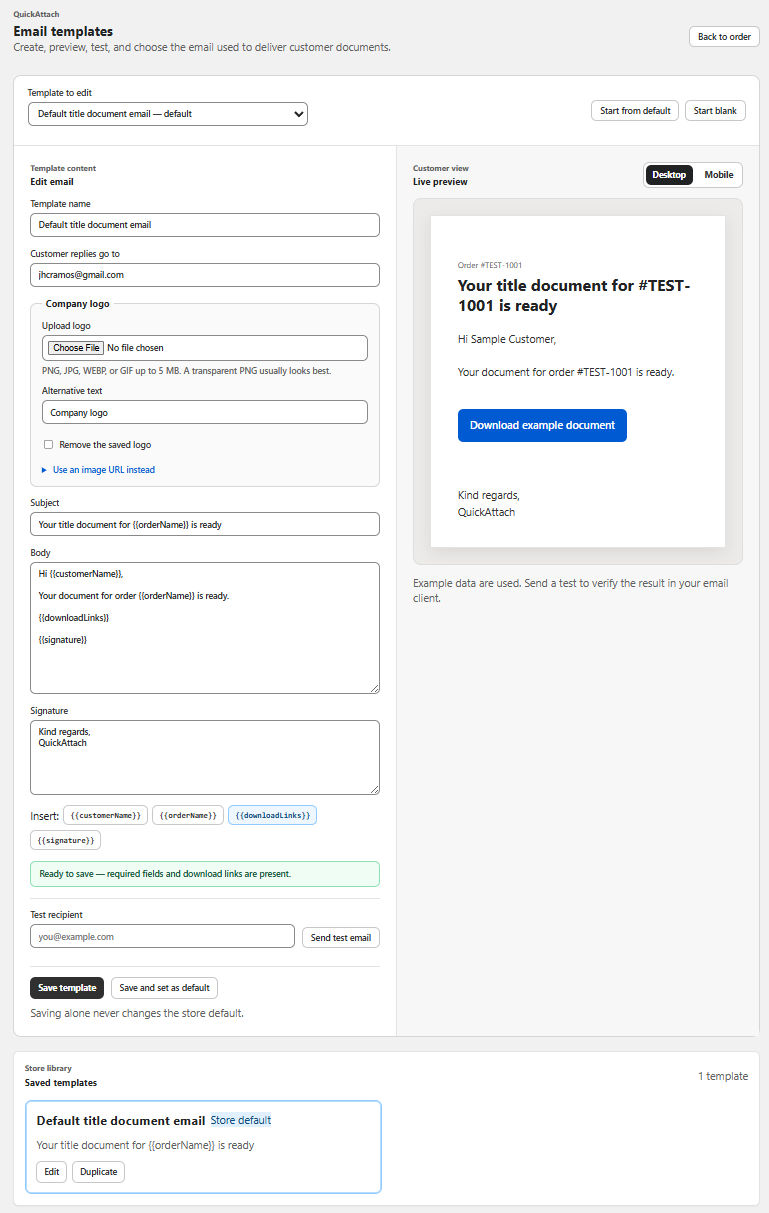
QuickAttach documents branded delivery emails. Inspect the current template controls to see which elements you can configure. Do not assume that visual branding includes a custom sending domain, arbitrary email code, or every design option your storefront supports.
A compact email identity specification
| Element | Recommended job | Review question |
|---|---|---|
| Sender display name | Identify the store | Would a recent buyer recognize it? |
| Logo or wordmark | Reinforce identity | Does the message still make sense without it? |
| Heading | State what is ready | Is it accurate for this release? |
| Download action | Lead to the file | Can the buyer understand it in isolation? |
| Support line | Explain how to get help | Is the route monitored? |
Fictional example: a restrained studio template
A fictional shop called Cedar Desk Studio delivers a room-plan PDF. Its email begins with the store name, then “Your room plan is ready.” A short paragraph identifies order 4401 and explains that the button opens the available download. A small logo and one accent color connect the message to the storefront without competing with the action.
The studio avoids a generic promotional header and does not add unrelated product recommendations above the file. The transaction is already complete; the immediate task is retrieval.
Review the template with real delivery content
- Use a synthetic order with a realistic long item name.
- Preview the configured identity and message content.
- Send through the normal test workflow to an inbox you control.
- Inspect the subject, sender display name, body, and download action on desktop and phone.
- Check that the message remains understandable with images unavailable.
- Verify the link leads to the intended synthetic file.
This is a recommended review protocol, not a report of testing every email client. The QuickAttach walkthrough describes the customer receiving a branded email; your test establishes how your chosen template appears in the contexts you support.
Save the identity choices in a short internal specification so future templates stay recognizable. Keep wording flexible for partial deliveries and revisions, where a generic “your order is complete” heading could be misleading.
Explore this topic
- Write a Clear Your-Files-Are-Ready Email for Shopify Customers
- Write a Partial-Delivery Email for a Multi-Item Shopify Order
- Write a Revised-File Email Without Confusing Your Customer
- Choose a Recognizable Sender Name for Digital Delivery Emails
- Design a Download Email That Works on Mobile
- Avoid Duplicate Messages When Delivering Shopify Digital Files
- Write a Download Expiry Reminder for Custom Files
- Make a Custom File Delivery Email Accessible
- Prepare Multilingual Delivery Email Templates for Shopify Orders
Deliver the right file with the right order
See how QuickAttach connects a customer-specific file or link to a Shopify order item.
See the QuickAttach order-to-download walkthrough