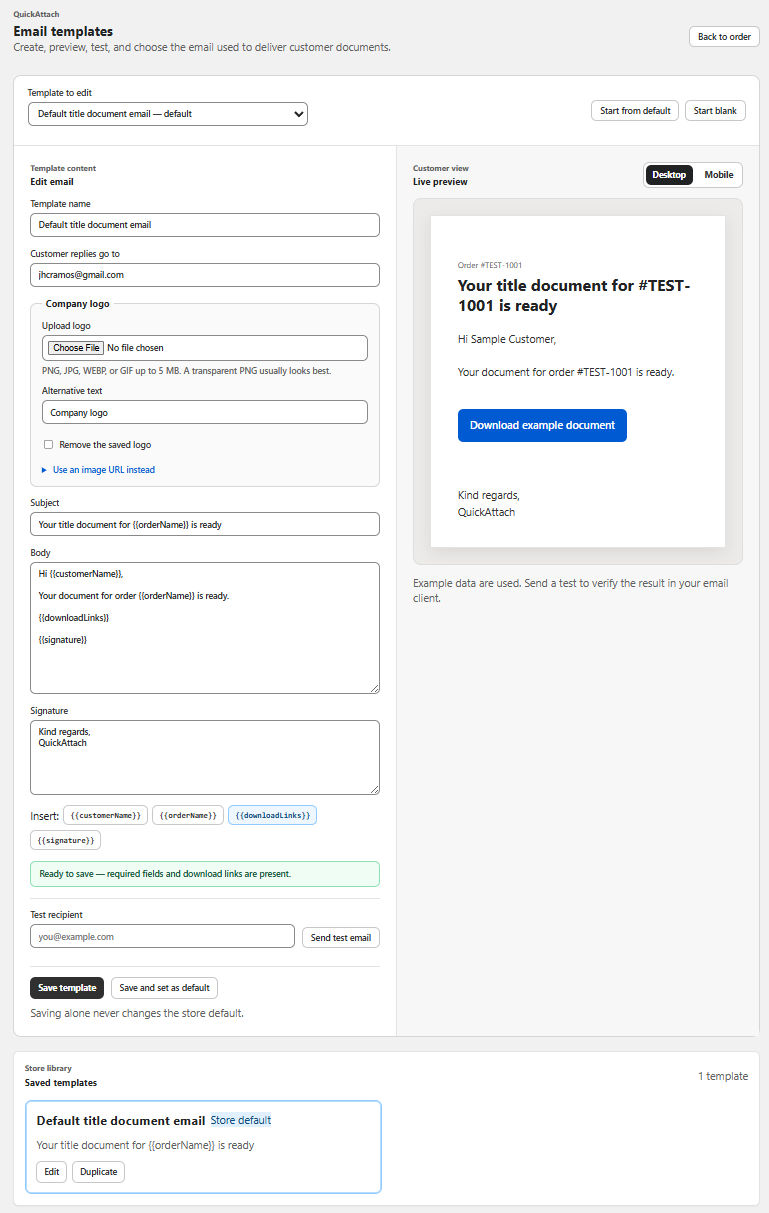
Lead with availability, then the action
The buyer should not have to read a project history before finding the file. Start with what is ready. Follow with the order context and the download action. If the file needs a particular viewer or comes in an archive, add a short practical instruction after the action.
The QuickAttach delivery workflow gives the buyer a download action in the email. Write copy that matches that path: “download your file” is clearer than “see attached” when the document is not a raw email attachment.
A fictional finished-report message
Subject: Your storage plan is ready — order 4402
Your custom storage-plan PDF is ready to download.
Open the download for order 4402 to save the finished plan. The PDF includes the layout, measurements, and assembly notes described in your order.
Download your storage plan
Please save a copy for your records. If you have trouble opening the download, contact our store support with order 4402 and a short description of what happens.
The action label in this example is sample text, not a working customer link. Replace the content description with the actual deliverable; do not promise pages or formats that are not included.
The four-sentence drafting method
- Availability: state the specific item that is ready.
- Context: identify the order and any necessary revision.
- Action: tell the customer what opening the download will provide.
- Help: explain the verified route for access problems.
This structure can be shorter for a simple file. It can also accommodate an availability date if the store has confirmed one. Do not add “available forever” or an arbitrary expiry date to make the email sound complete.
Remove wording that creates support questions
| Ambiguous wording | More precise approach |
|---|---|
| Your order is done | Name the delivered item, especially for partial releases |
| Click here | Name the file or action |
| See attachment | Describe the actual download link |
| Reply with all your details | Ask only for the order reference and error description |
Before sending, compare the email with the selected files. A perfectly written message can still describe the wrong release. QuickAttach support guidance also calls for confirming the customer email and testing the link. Use a controlled inbox to check the full message and download path before adopting a template for live work.
Deliver the right file with the right order
See how QuickAttach connects a customer-specific file or link to a Shopify order item.
See the QuickAttach order-to-download walkthrough