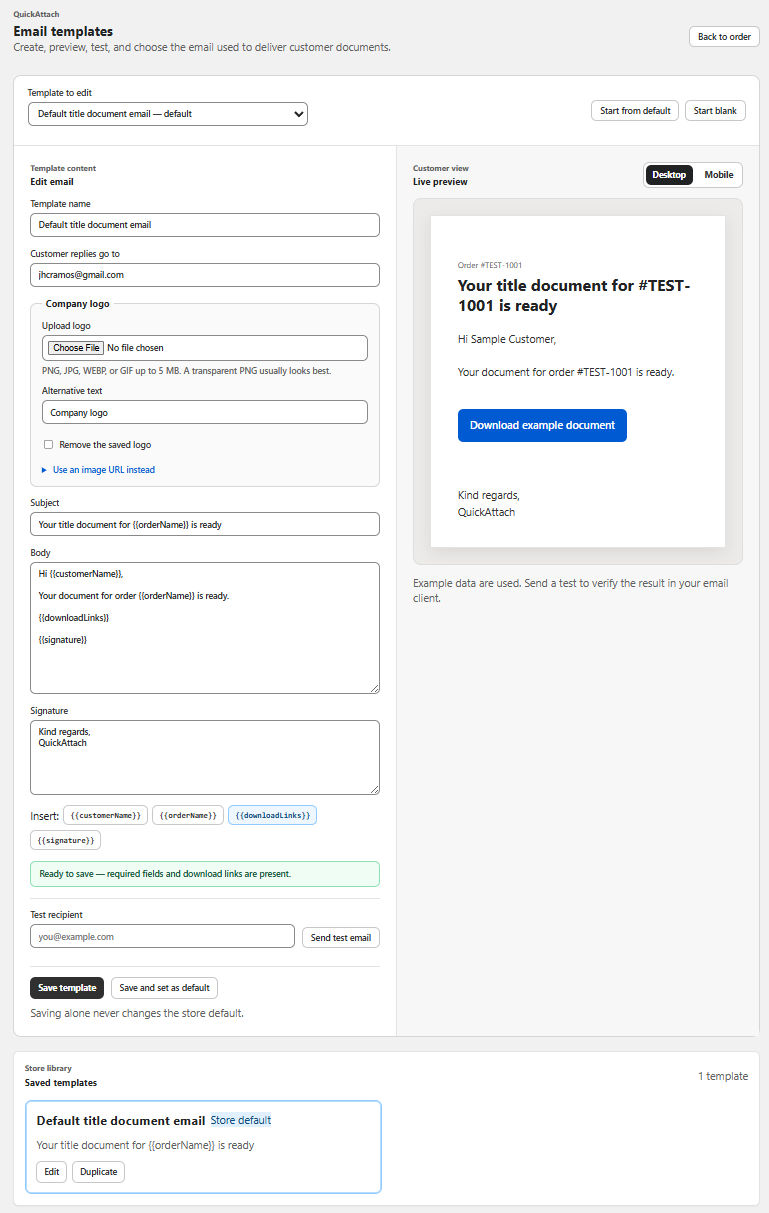
Preserve meaning when presentation changes
Customers may enlarge text, use assistive technology, read in a narrow window, or have images disabled. The message should still communicate the store identity, the ready item, and the next action. Essential instructions belong in text.
W3C’s accessibility checks provide a useful starting point for examining headings, contrast, alternative text, and keyboard access. The email-specific checklist below is an operational review aid, not a claim of certification or a complete accessibility audit.
Use purposeful text and links
“Download your storage plan” is more informative than several identical “click here” links. If a message contains different files, give each action a distinct label. Keep visible labels aligned with the actual destination so a customer does not open an unexpected file type.
Use a short heading and ordinary paragraphs. Avoid using all-capital text or an image of a paragraph as the main explanation. If you add a meaningful image through supported template controls, provide appropriate alternative text where the interface allows it.
Fictional example: partial delivery without color dependence
A store sends order 4409’s diagram while its reference sheet is pending. The first template distinguishes them only with a green icon and a gray icon. The revised wording adds “Diagram: ready to download” and “Reference sheet: still being prepared.” Color can reinforce the distinction, but the words now carry the meaning.
An accessibility review card
- Read the email with images unavailable: is the task still clear?
- Enlarge the text: is important content lost or obscured?
- Review text and action contrast in the delivered message.
- Check that different actions have meaningful, distinct names.
- Inspect the reading order in an appropriate assistive-technology test.
- Check the download destination as well as the email.
- Record issues, affected clients, and the changes made.
Testing should use a synthetic order and harmless files. These checks are a protocol to run, not reported results across every client. Email software can alter presentation, so record the contexts actually examined.
Work within supported template controls
QuickAttach documents branded delivery emails; available editing controls determine which issues a merchant can fix directly. If an important accessibility problem is outside those controls, report the specific behavior to support with sanitized evidence.
Do not treat a polished email as proof that the delivered PDF is accessible. The message, customer download page, and file are separate parts of the customer journey, each requiring its own review.
Deliver the right file with the right order
See how QuickAttach connects a customer-specific file or link to a Shopify order item.
See the QuickAttach order-to-download walkthrough