A duplicate can be a second system doing its own job
Customers may receive an order acknowledgment, a fulfillment-related notification, and a file-ready email. Those are not automatically redundant, but they become confusing when two messages claim different completion states or both appear to contain the same action.
QuickAttach documents delivery emails and optional Shopify fulfillment. That combination makes notification mapping important. Do not assume a universal trigger sequence: inspect your store’s settings and test the actual actions you use.
Create a notification inventory
| Message source | Trigger to verify | Purpose | Owner |
|---|---|---|---|
| Shopify | Order or fulfillment event | Purchase or order-state information | Store administrator |
| Delivery app | Chosen file-send action | Retrieve the finished deliverable | Delivery operator |
| Support inbox | Manual response | Resolve a question or exception | Support team |
| Other installed tools | Configured workflow | Record the real purpose | Relevant tool owner |
Fill the trigger column from observed settings and tests. The table is not a claim that every listed message is enabled in every store.
Fictional example: two completion messages
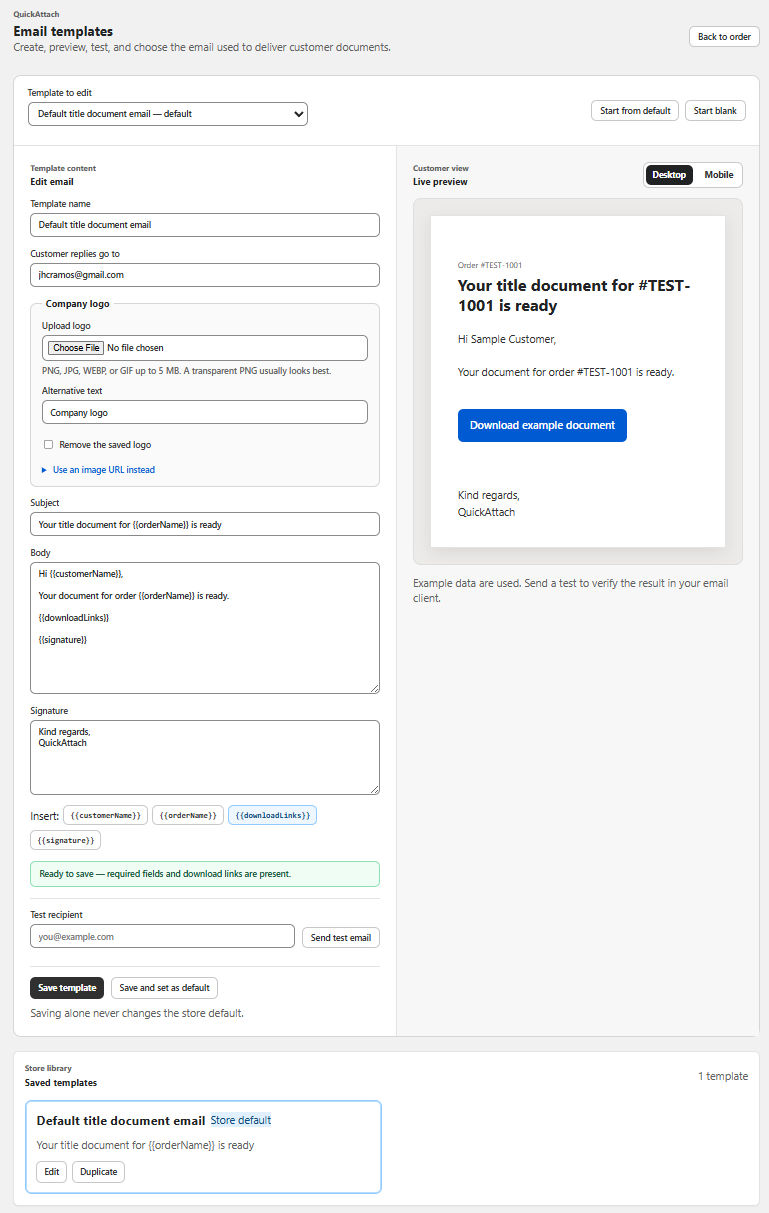
A custom-plan store sends the ready-file email for order 4407 and also performs a fulfillment action. The controlled test inbox receives two messages close together. One explains how to download; the other uses a broad completion phrase. The team reviews whether both messages are needed and whether their wording matches the actual item scope.
The right fix may be clearer wording, a different supported notification setting, or removal of a redundant manual message. Blindly disabling all Shopify notifications can remove useful purchase information and is not the purpose of this exercise.
Test one variable at a time
- Use a synthetic order and a dedicated test inbox.
- Record the initial notification configuration.
- Perform the ordinary file delivery action and note every message received.
- Separately test the fulfillment choice used by staff.
- Compare subject, timing, file links, and completion language.
- Change only the setting justified by the observed duplication, then repeat the affected case.
This is a test protocol, not an assertion about which emails your store currently sends. Use QuickAttach support to clarify app behavior that is not apparent in the interface.
Document the resulting rule for staff. Otherwise an operator may add a manual “just in case” email and recreate the duplication after the configuration has been cleaned up.
Deliver the right file with the right order
See how QuickAttach connects a customer-specific file or link to a Shopify order item.
See the QuickAttach order-to-download walkthrough