Tell the customer whether action is needed
A revision can be a minor labeling correction or a substantial change that makes an older file unsuitable. The message should make that distinction clear. “Updated file attached” leaves the buyer guessing whether to discard a saved copy, download again, or ignore the message.
Use the supported delivery procedure in your app and check its actual link behavior. The QuickAttach workflow documents file selection and delivery; this article does not assume that every earlier link automatically points to the replacement or stops working.
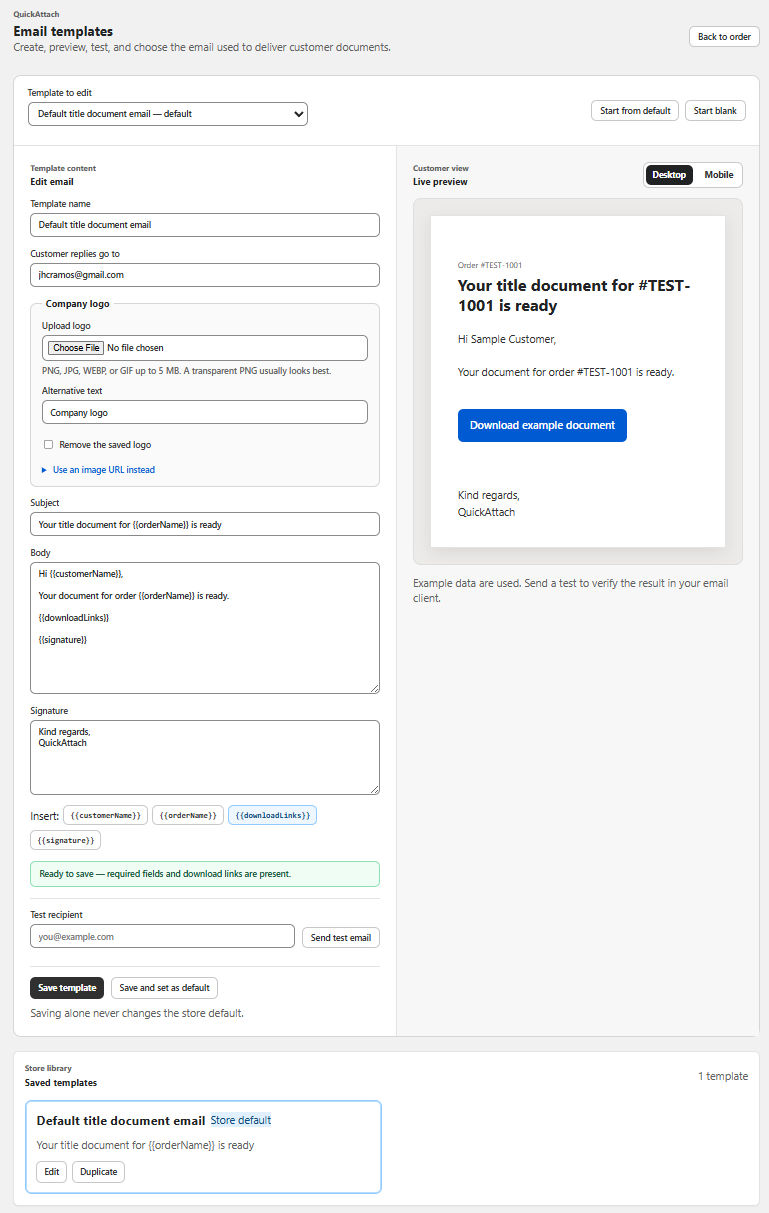
A fictional revision notice
Subject: Revised room plan v2 for order 4404
A revised version of your room plan is ready. Version 2 corrects the cabinet labels on page 3; the other layout details are unchanged.
Download room plan v2
Please use version 2 for future reference. If you saved version 1, keep it clearly marked as the earlier copy or replace it with the new download according to your needs. Contact our store support if you cannot identify which version you have.
This sample describes a fictional, limited correction. Do not minimize a change that affects measurements or use. Explain the practical consequence accurately without adding unnecessary production history.
Build a revision note before writing the email
- Previous release identifier.
- New release identifier.
- Changed sections or assets.
- Whether the buyer needs to repeat any action.
- Observed behavior of earlier download paths.
- Support route for a customer holding an old copy.
The revision note helps the writer avoid unsupported claims such as “all old copies have been removed.” A customer may have downloaded the original file already; changing a hosted deliverable does not establish control over that local copy.
Check both paths with synthetic material
Deliver a harmless version-one test file, save the customer message, and then follow the supported revision procedure. Open both the earlier message and the new message from a controlled customer context. Record the contents each path provides. This is a proposed test, not a reported result.
If you cannot establish the old path’s behavior, keep the email focused on the new version and provide a clear way to identify it inside the document. A visible revision label is useful when filenames are changed during saving.
Finally, check that the selected order item and recipient are still correct. A revision is another release event and deserves the same matching review as the initial delivery. Ask support before depending on undocumented replacement behavior.
Deliver the right file with the right order
See how QuickAttach connects a customer-specific file or link to a Shopify order item.
See the QuickAttach order-to-download walkthrough